What Is a CMS and Does Your Organization Need One?

You've probably heard the term "CMS" thrown around in meetings about your website. Maybe your developer mentioned it. Maybe a board member asked if you have one. But nobody ever explained what it actually means in plain language.
Let's fix that.
What a CMS Actually Does
CMS stands for content management system. It's software that lets you add, edit, and organize content on your website without writing code.
Think of it like this: your website is a house, and the CMS is the set of keys that lets your staff walk in and rearrange the furniture. Without a CMS, you'd need to call the builder every time you wanted to move a couch.
With a CMS, your office manager can update event dates. Your communications director can publish blog posts. Your executive director can swap out the homepage photo. All without sending a single email to a developer.
Types of CMS Platforms
Not all content management systems work the same way. The two main categories are traditional and headless.
Traditional CMS
A traditional CMS bundles everything together: the editing interface where you write content and the front-end templates that display it to visitors. WordPress is the most well-known example. Squarespace and Wix also fall into this category.
The upside is simplicity. You log in, make changes, and see them on your site. The downside is that these systems can be rigid. Your design options are often limited to available themes and plugins, and platforms like WordPress require constant updates to stay secure.
For a deeper comparison of WordPress and modern alternatives, check out our breakdown of Next.js vs. WordPress.
Headless CMS
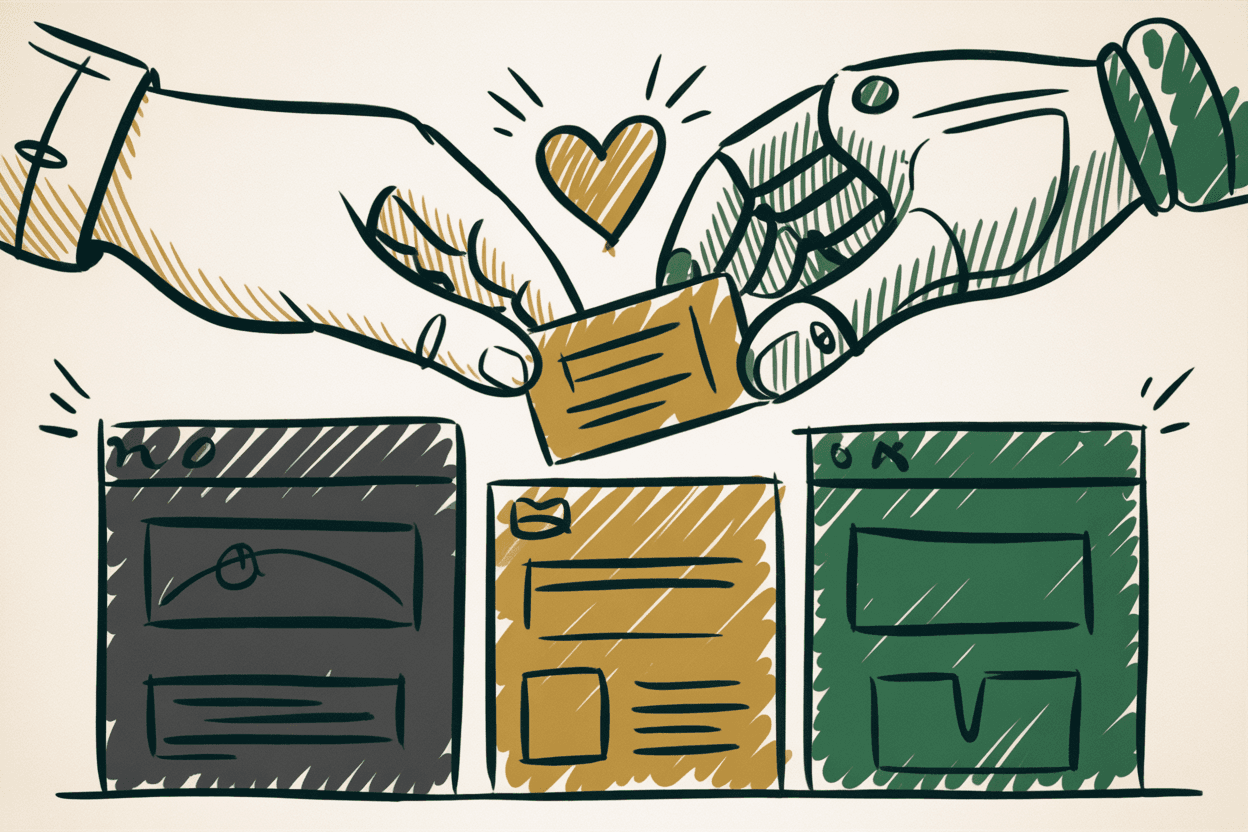
A headless CMS separates the content editing from the website's front end. You manage your content in one system (the "back end"), and a separate front end pulls that content in and displays it however you want.
Sanity, Contentful, and Strapi are popular headless options. They give developers complete control over design and performance while still giving your team a clean, simple editing experience.
The tradeoff is that a headless CMS requires a developer to set up the front end. But once it's built, your day-to-day editing experience can actually be smoother than a traditional CMS.
When You Need a CMS
A CMS makes sense when your team needs to make regular updates without developer involvement. Here are the clearest signs you need one.
Your staff updates content frequently. If you're changing event listings, adding news posts, or updating program descriptions more than a few times per month, you need a CMS. Emailing a developer every time you need a text change is slow and expensive.
You publish a blog or news section. Regular content publishing is one of the best things you can do for your website's search rankings and community engagement. A CMS makes publishing as easy as writing in a document. Learn more about building a strong nonprofit content strategy.
You post events. Churches with weekly service updates, nonprofits with fundraising events, HOAs with community meetings: if your calendar changes often, your team needs to manage it directly.
You have multiple content editors. When more than one person needs to update the website, you need a system with user accounts, permissions, and editing workflows. A CMS handles all of this.
When You Might Not Need One
Not every website needs a CMS. In some cases, a simpler setup works just fine.
Your site is a single page. If your entire web presence is one landing page with your contact information and a brief description, a static site might be all you need. There's no content to manage beyond the occasional phone number change.
Your content rarely changes. If your website information stays the same for months at a time, paying for CMS setup and maintenance might not be worth it. A developer can make occasional updates for less than the cost of running a CMS.
What to Look for in a CMS
If you've decided you need a CMS, choosing the right one matters more than most people realize. Here's what to prioritize.
Ease of use for non-technical staff
This is the most important factor. Your CMS will be used by people who are experts in running programs, not managing websites. The editing interface should feel intuitive. If your team needs a manual to update a page title, the CMS is too complicated.
Ask your developer for a demo of the editing experience before you commit. Better yet, have the person who will actually be making updates try it out.
Media management
Your organization probably has photos, documents, PDFs, and maybe videos. Your CMS should make it easy to upload, organize, and reuse these files. Look for features like image cropping, file folders, and the ability to search your media library.
User roles and permissions
Not everyone should have the same level of access. Your communications coordinator might need to create and edit blog posts. Your executive director might need to approve them before they go live. Your volunteer coordinator might only need to update one specific page. A good CMS lets you set these permissions.
Preview before publish
Your team should be able to see exactly how their changes will look on the live site before they hit publish. This prevents formatting surprises and gives editors confidence to make updates on their own.
Mobile editing
Sometimes your executive director needs to fix a typo from their phone during a conference. A CMS with a responsive editing interface or a mobile app makes this possible.
The Training Question
Here's something that gets overlooked in almost every website project: will your developer actually train your team to use the CMS?
A CMS is only valuable if your staff knows how to use it. Too many organizations end up with a beautiful new website and a content management system that nobody understands. The developer moves on to the next project, and your team is stuck emailing for help with every small change.
Before you hire anyone to build your website, ask these questions:
- How many training sessions are included?
- Will you create documentation specific to our site?
- What does ongoing support look like after launch?
- Can we record the training sessions for future staff?
If the answer to any of these is vague, keep looking.
Common CMS Mistakes
Organizations make the same CMS mistakes over and over. Here's how to avoid them.
Choosing based on popularity, not fit
WordPress powers roughly 40% of the web, which makes it the default choice for many organizations. But popularity doesn't mean it's the right fit for you. WordPress requires constant updates, plugin management, and security monitoring. For a small nonprofit with limited technical resources, that maintenance burden can become a real problem.
Skipping training entirely
We just talked about this, but it bears repeating. No training means no independence. Your team will be afraid to touch the website, and your investment in a CMS will be wasted.
Installing too many plugins
This one applies mainly to WordPress. Every plugin you add is a potential security vulnerability and a potential compatibility conflict. Organizations end up with 30 or 40 plugins, half of which are outdated, and wonder why their site is slow and getting hacked.
Why We Build with Sanity
At Laurel, we use Sanity as our CMS of choice. Here's why.
Structured content. Sanity organizes your content into clearly defined types: pages, blog posts, team members, events. Each content type has exactly the fields your editors need. No guessing, no clutter.
No plugin vulnerabilities. Because Sanity is a headless CMS, there's no plugin ecosystem to manage. Your content lives in a secure, hosted environment that Sanity maintains. No midnight security patches. No compatibility headaches.
It scales with you. Whether you have 10 pages or 10,000, Sanity handles it without slowing down. And because the front end is separate, we can redesign your site without touching your content.
Your editors actually enjoy using it. Sanity's editing interface is clean, fast, and customizable. We can tailor it to match your team's workflow so editors see exactly what they need and nothing they don't.
Making Your Decision
Choosing a CMS is a decision you'll live with for years. Take the time to define what your team actually needs.
Start by listing who will be editing the site and what they'll be updating. Then look for a CMS that makes those specific tasks easy. Don't get distracted by feature lists full of things you'll never use.
And remember: the best CMS is the one your team will actually use. A powerful system that intimidates your staff is worse than a simple one they update with confidence every week.