Keyboard Navigation Testing: How to Check If Your Site Is Truly Accessible
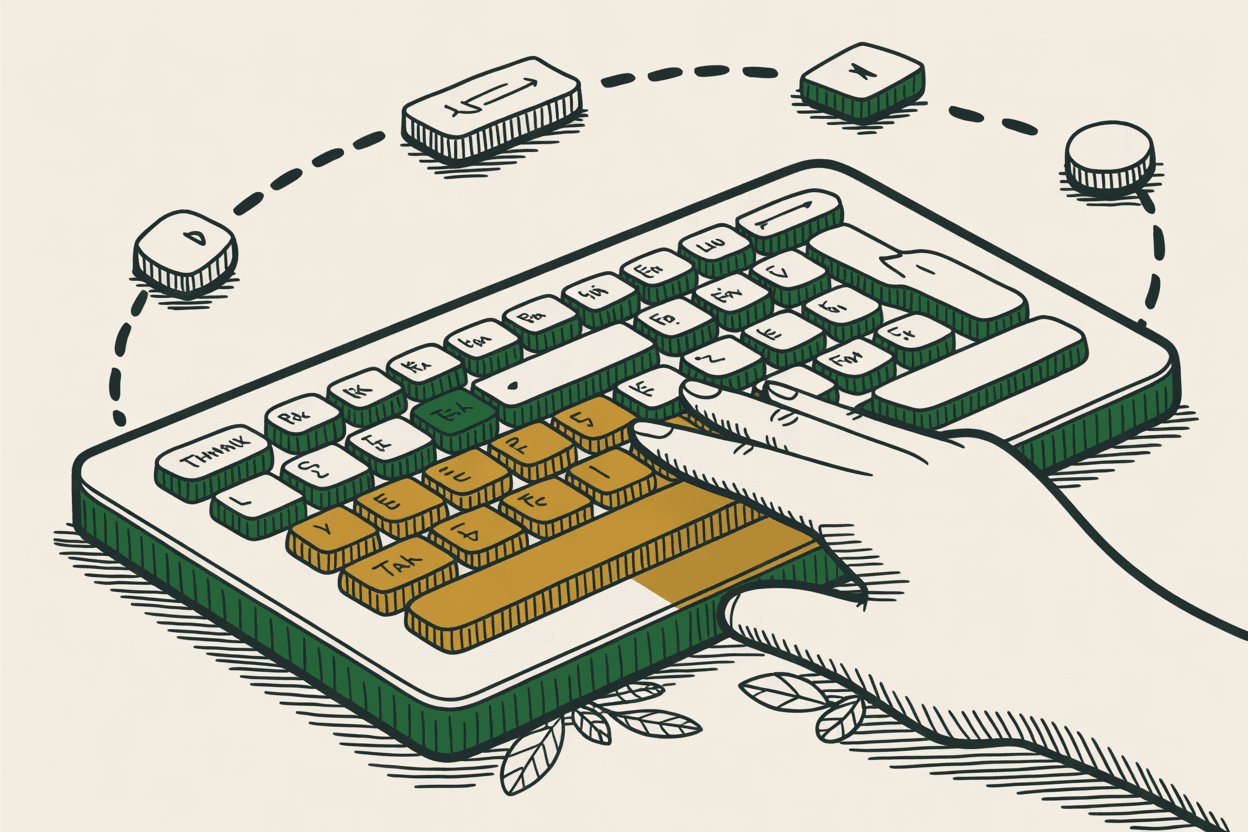
Not everyone uses a mouse. Some people can't. Some people choose not to. Either way, your website needs to work for them.
People with motor disabilities, repetitive strain injuries, or temporary injuries rely on keyboards to navigate the web. So do screen reader users. So do power users who prefer keyboard shortcuts over clicking. And so does anyone whose trackpad just died on a Tuesday afternoon.
Keyboard accessibility isn't a bonus feature. It's a WCAG 2.1 AA requirement, and it's one of the easiest things to test yourself. All you need is your keyboard and ten minutes.
Why Keyboard Navigation Breaks in the First Place
Native HTML elements work with keyboards out of the box. A standard `<button>` can be focused with Tab and activated with Enter or Space. A standard `<a>` tag works the same way. A `<select>` dropdown opens with Space and navigates with Arrow keys.
The problems start when developers build custom components. A `<div>` styled to look like a button doesn't respond to keyboard input unless someone explicitly adds that behavior. A custom dropdown menu built with JavaScript might only respond to mouse clicks. A fancy accordion component might look great but be completely invisible to keyboard users.
The more custom your site, the more likely it has keyboard accessibility gaps. And the only way to find them is to test.
The 10-Minute Keyboard Navigation Test
Here's the test. It takes about ten minutes and requires zero technical skills.
Step 1: Put your mouse aside. Literally move it off your desk or unplug it. If you can grab it, you will.
Step 2: Open your homepage in a browser.
Step 3: Press Tab. This moves focus to the next interactive element on the page. Keep pressing Tab to move forward. Press Shift+Tab to move backward. Press Enter to activate links and buttons. Press Space to toggle checkboxes, activate buttons, or open select menus. Use Arrow keys to navigate within components like dropdown menus, radio buttons, and tab panels.
That's your entire toolkit. Now try to do everything a visitor would do.
What to Check on Every Page
Work through this checklist on your homepage, your donation page, and your contact page at minimum. These are your highest-traffic, highest-impact pages.
Can you see where you are?
As you Tab through the page, there should be a visible indicator showing which element currently has focus. This is usually a colored outline around the focused button, link, or form field. If you're tabbing and can't tell where the focus is, you've found the single most common keyboard accessibility failure on the web.
Can you reach every interactive element?
Tab through the entire page. Can you reach every link in the navigation? Every button? Every form field? Every link in the footer? If any interactive element gets skipped, keyboard users can't access it.
Can you skip the navigation?
Press Tab once when the page first loads. The very first focusable element should be a "Skip to main content" link (it might be visually hidden until focused). This lets keyboard users jump past your navigation menu instead of tabbing through 15 menu items on every single page.
Can you use dropdown menus?
If your navigation has dropdowns, can you open them with the keyboard? Can you navigate through the sub-items with Arrow keys? Can you close them with Escape? Dropdown menus that only open on mouse hover are a common failure.
Can you complete your forms?
Navigate to your contact form or donation form. Can you Tab into every field? Can you select options from dropdowns? Can you check checkboxes with Space? Can you submit the form with Enter? Can you read error messages if you submit incorrectly?
Can you control media?
If you have videos or audio players, can you play and pause them with the keyboard? Can you adjust the volume? Custom media players are frequent offenders here.
Are you ever trapped?
This is the big one. At any point during your testing, do you get stuck? Can you always Tab away from a component? If pressing Tab does nothing and you can't move forward or backward, you've found a keyboard trap. This is a serious WCAG failure.
The Most Common Failures (and How to Fix Them)
No visible focus indicator
This is the number one keyboard accessibility issue. It happens because developers add `outline: none` to their CSS to remove the "ugly" default browser focus ring, then never replace it with anything.
The fix: Add `:focus-visible` styles to your CSS. This shows a focus indicator when someone is using a keyboard but hides it for mouse clicks, giving you the best of both worlds. A 2-pixel solid outline in your brand color works perfectly. Make sure it has enough contrast against the background to be clearly visible.
Dropdown menus that only work on hover
Many navigation menus use CSS `:hover` to show submenus. Keyboard users don't hover. They Tab.
The fix: Add `:focus-within` to your dropdown trigger styles alongside `:hover`. This opens the submenu when any element inside it receives keyboard focus. Also add keyboard event handlers so Arrow keys navigate within the menu and Escape closes it.
Modal dialogs that don't manage focus
When a modal opens, focus should move into the modal. While the modal is open, Tab should cycle through only the elements inside it (this is called a "focus trap," and it's the good kind). When the modal closes, focus should return to the element that opened it.
Most custom modals fail all three of these requirements. Focus stays behind the modal, users can Tab to invisible elements on the page behind the overlay, and closing the modal drops focus back to the top of the page.
The fix: Use the native HTML `<dialog>` element, which handles focus management automatically. If you're using a custom modal, you'll need JavaScript to manage focus on open, trap focus inside, and restore focus on close.
Custom components without keyboard support
Accordions, tabs, carousels, date pickers, custom select menus. If they're built from generic `<div>` and `<span>` elements instead of semantic HTML, they probably don't support keyboard interaction.
The fix: Use semantic HTML elements wherever possible. A `<button>` already works with keyboards. A `<details>` and `<summary>` creates a native accordion. When you must build custom components, follow the WAI-ARIA Authoring Practices, which provide keyboard interaction patterns for every common widget.
Missing skip navigation link
Without a skip link, keyboard users have to Tab through your entire navigation menu every time they visit a new page. On a site with 20 navigation links, that's 20 Tab presses before reaching the content.
The fix: Add a "Skip to main content" link as the very first focusable element on every page. It can be visually hidden until it receives focus. When activated, it moves focus to the `<main>` element. This takes about 15 minutes to implement and dramatically improves the keyboard experience.
Building Keyboard Testing Into Your Process
Testing keyboard navigation once is good. Building it into your process is better. Here's how.
Test every new component. Before you ship a new feature, interactive widget, or page, Tab through it. If you can't use it with a keyboard, fix it before launch.
Add focus styles to your design system. Define what your focus indicator looks like once and apply it consistently. This prevents the "remove outline, forget to replace it" problem.
Use semantic HTML first. The easiest way to get keyboard accessibility right is to use the elements that already support it. Native `<button>`, `<a>`, `<input>`, `<select>`, and `<details>` elements give you keyboard support for free.
Write your alt text while you're at it. If you're already auditing for keyboard access, take five extra minutes to check that every image has meaningful alt text. Keyboard navigation and screen reader accessibility go hand in hand.
The Bottom Line
Keyboard navigation testing is the single fastest accessibility audit you can do. No special tools needed. No technical background required. Just you, your keyboard, and ten minutes.
If you got stuck anywhere during the test, your keyboard users are stuck too. The good news is that most fixes are straightforward. Semantic HTML, visible focus indicators, and a skip navigation link will solve the majority of keyboard accessibility issues.
Your website should work for everyone who visits it, regardless of how they navigate. The Tab key will tell you if it does.